
Contents
- What is NHS Care Identity Service (CIS2)?
- Before You Begin
- Connect Your Practice
- Set Up Your Account
- I have used my smartcard with C the Signs before
- I already have a C the Signs account
- I am new to C the Signs
- Adding Another Practice
- Prefer to Sign In Manually?
- Troubleshooting
What is NHS Care Identity Service (CIS2)?
NHS Care Identity Service (CIS2) is NHS England's national sign-in service for healthcare professionals. It lets you securely verify your identity with your NHS smartcard, using a single set of credentials across NHS systems.
C the Signs is integrated with CIS2, so you can set up the C the Signs toolbar on SystmOne with your smartcard and PIN. There are no practice credentials to type, and your account details are filled in for you.
- Setting up with your smartcard is a one-time step. Once your practice and account are connected on a computer, you will not be asked to repeat it at every login.
- Your day-to-day sign-in stays exactly the same. You will only see the smartcard option when setting up C the Signs on a new computer or adding a new practice.
Before You Begin
You will need:
- Your NHS smartcard and PIN, inserted and ready to use.
- The latest version of the C the Signs desktop application. Most practices update automatically. If yours does not, your IT team can install the update in minutes.
- An active C the Signs contract at your practice. If your practice is not yet registered with C the Signs, contact our team here and we will get you set up.
Connect Your Practice
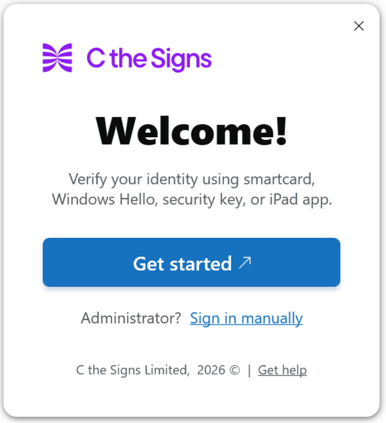
STEP 1 - Click 'Get Started' on the C the Signs toolbar
- When C the Signs launches on a computer for the first time, you will see the Get Started screen.
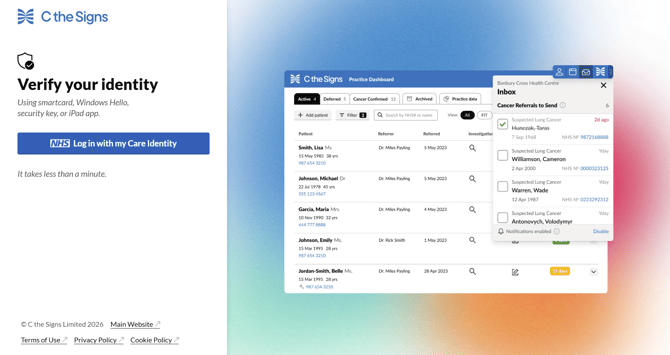
- Click 'Get Started'. Your browser will open the 'Log in with NHS Care Identity' page.
STEP 2 - Log in with NHS Care Identity
- Select your smartcard and enter your PIN.
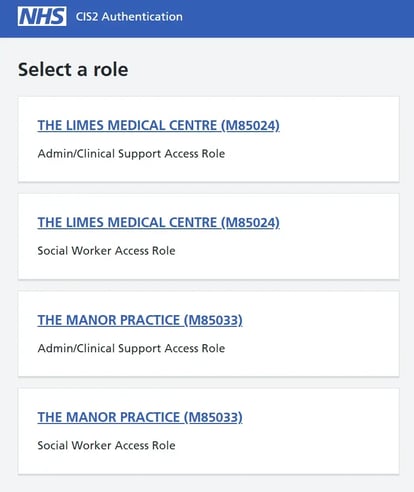
- If your smartcard is connected to more than one practice, choose the practice you would like to add.
- Once your identity is verified, your practice is connected to the toolbar and you will see a confirmation in your browser.
.webp?width=670&height=357&name=image%20(1).webp)
STEP 3 - Approve in SystmOne
- Back in the app, click 'Start' and then 'Approve in SystmOne'.
- This step happens only once per practice, during setup. You will not be asked to repeat it.
.webp?width=425&height=548&name=image%20(2).webp)
.webp?width=401&height=456&name=image%20(3).webp)
Set Up Your Account
Once your practice is connected, C the Signs links your verified identity to your account. What happens next depends on your situation. Find yours below.
I have used my smartcard with C the Signs before
- C the Signs recognises your smartcard and signs you in automatically. There is nothing else to do.
- You will see the message 'You've been successfully signed in.'
.webp?width=670&height=357&name=image%20(4).webp)
I already have a C the Signs account
- If this is the first time you have used your smartcard with C the Signs, the 'Sign in or sign up' page will open in your browser.
- Choose 'Sign In' and enter your C the Signs email and password. This links your smartcard to your account, so next time you are signed in automatically.
- You will see the message 'Your Toolbar is set up and ready!'
.webp?width=670&height=356&name=image%20(5).webp)
I am new to C the Signs
- The 'Sign in or sign up' page will open in your browser. Choose 'Sign Up'.
- Your details are already filled in from your smartcard. In most cases, all you need to do is select your job role.
- An NHS email address is required to create your account. If your smartcard does not carry one, simply type your NHS email into the field.
- Read and accept the medical disclaimer, terms of use and privacy policy, then create your account.
- If your practice has more than one hospital, you will be asked to choose your default hospital. Most users will not see this step.
- You will see the message 'Your Toolbar is set up and ready!'
.webp?width=670&height=359&name=image%20(6).webp)
Adding Another Practice
Work across more than one SystmOne practice? Adding another one takes seconds.
STEP 1 - Click 'Add Practice' on the C the Signs toolbar
- Your browser will open the 'Log in with NHS Care Identity' page. Select your smartcard, enter your PIN and choose the practice you would like to add.
STEP 2 - You're connected
- Because your smartcard is already linked to your C the Signs account, the new practice is added to the same account automatically. No new account is created and there is nothing to sign in to.
- You can view all of your linked practices at any time on your 'My Account' page.
Prefer to Sign In Manually?
You can still set up C the Signs the way you always have.
- On the add-practice screen, click 'Sign in manually' and enter your practice username and password as before.
- Like the smartcard route, manual setup is a one-time step. Once you are linked, you will not be asked to log in again.
Troubleshooting
My smartcard login failed or timed out. Check your smartcard is inserted correctly and try again using the retry option on screen. If the problem continues, contact our support team.
The email field on the sign-up form is empty. Some smartcards do not carry an email address. Simply type your NHS email address into the field to continue. An NHS email address is required to create a C the Signs account.
I see a message saying my email is already in use. You already have a C the Signs account. Go back and choose 'Sign In' instead, and your smartcard will be linked to your existing account.
I see a message asking me to contact support. Occasionally a smartcard cannot be linked automatically. Contact our support team and we will resolve it for you.
I see a message saying my practice does not have an active contract. Your practice is not yet registered with C the Signs. Contact our team to get started.
I can't see the 'Get Started' screen or smartcard option. Make sure you are running the latest version of the C the Signs desktop application. If your practice does not update automatically, ask your IT team to install the latest version.
For any other questions, our team is here to help. Contact support here or email support@cthesigns.com.