
- To begin, have EMIS open to the GP practice you are currently working within.
Ensure there is only one EMIS window open. - The C the Signs app should automatically launch and a welcome screen will appear. Click Get Started.
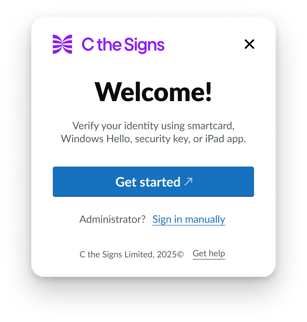
If you cannot see the Welcome screen, launch C the Signs from the Windows Start menu.
- You will be prompted to verify access to the GP practice with your NHS Care Identity e.g. NHS smart card
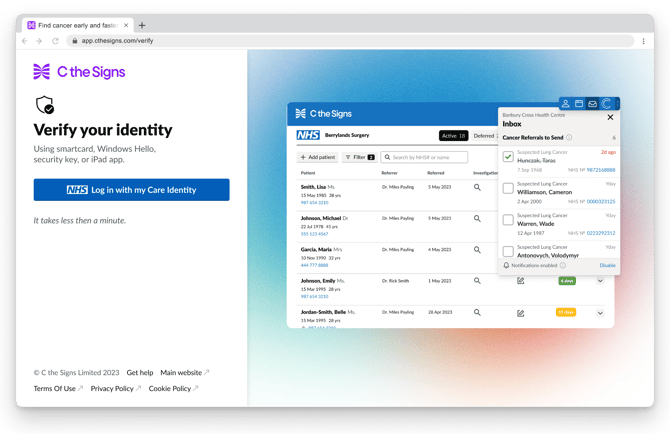
You may be asked by your web browser to allow access to the C the Signs application. Click ‘allow’. - Once you have successfully verified your practice, the C the Signs toolbar will launch on your desktop.
- You will be navigated to the Get Started screen. Click ‘Create an account’ and follow the instructions.
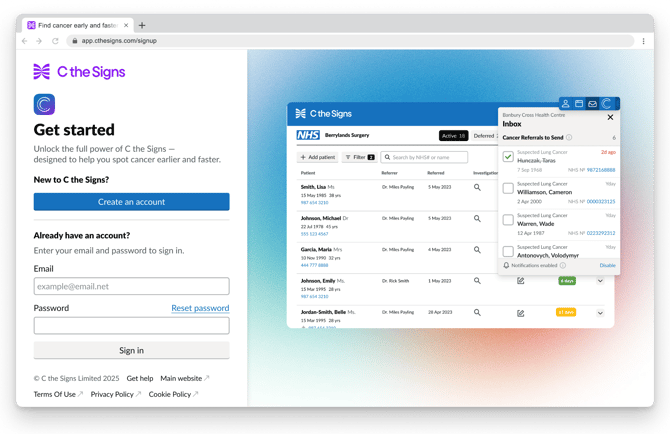
If the screen does not appear, click on the first button on the toolbar. - Once you complete the user account process, your EMIS account will be synced to your C the Signs account.